Customer Portal Guide
Published March 8, 2026
Customer Portal Guide
The Customer Portal is a branded, app-less web experience where your customers can check their loyalty status, download wallet passes, and manage their preferences — all without installing anything.
💡 Tip: The portal works on any device with a web browser. No app download required — customers simply click a link.
Accessing the Portal
Each customer gets a unique portal URL based on their barcode ID:
https://yoursite.com/my-loyalty/{barcodeId}
Customers can reach their portal in several ways:
- Clicking the link in their welcome email
- Scanning the QR code on your poster or receipt
- Clicking a magic link from a marketing campaign
- Typing their barcode URL directly in a browser
💡 Tip: You don't need to share portal URLs manually. They're automatically included in welcome emails and marketing campaigns.
Email Verification
For security, customers must verify their identity before accessing the portal.
How It Works
- The customer sees a verification screen with their masked email
- They tap Send Verification Code
- A 6-digit code arrives in their inbox within seconds
- They enter the code on the portal
- A 30-day session is created automatically
During the 30-day session, customers can return to their portal without re-verifying. After it expires, they'll simply verify again.
💡 Tip: Magic links in emails skip verification entirely — customers land directly in their authenticated portal with one click.
Points Balance
If your loyalty program uses points, customers see a clear summary of their status:
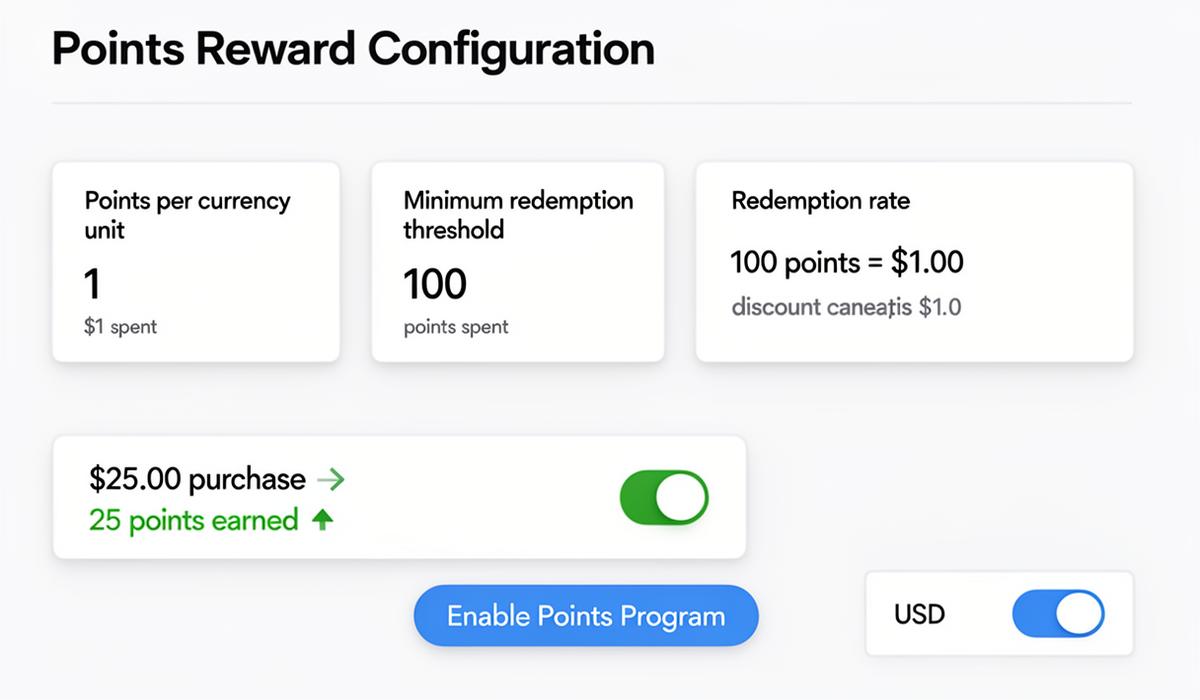
- Current points balance — How many points are available to spend
- Progress bar — Visual progress toward the next reward threshold
- Total earned — Lifetime points accumulated across all visits
- Total redeemed — Points already spent on rewards
📝 Note: Points update in real time. When staff award points via the dashboard or POS, customers see the change immediately on their portal.
Punch Cards
If your program uses punch cards, each active card is displayed with visual progress:
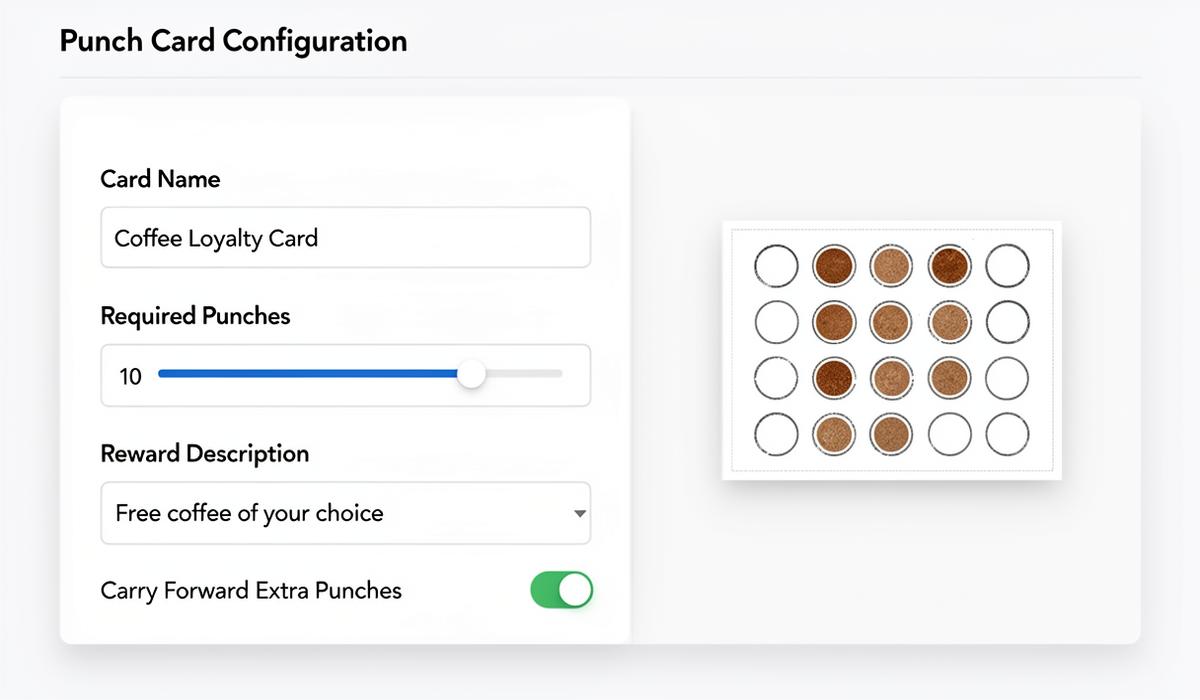
- A visual grid showing filled and empty punch slots
- The reward description (what they earn when the card is full)
- Current progress (e.g., "6 of 9 punches")
- Any available rewards ready to redeem
Customers can have multiple active punch cards if you've configured more than one punch card rule.
Welcome Offer
If you've configured a welcome offer, the portal shows its current status:
- Available — The offer is ready to use, showing description and expiry countdown
- Redeemed — Confirmation that the offer was used, with the redemption date
- Expired — The offer window has passed
⚠️ Warning: Once a welcome offer expires, it cannot be extended. Set your expiry period carefully in Rewards Settings.
Digital Wallet Passes
The portal provides buttons for customers to add their loyalty card to their phone's digital wallet:
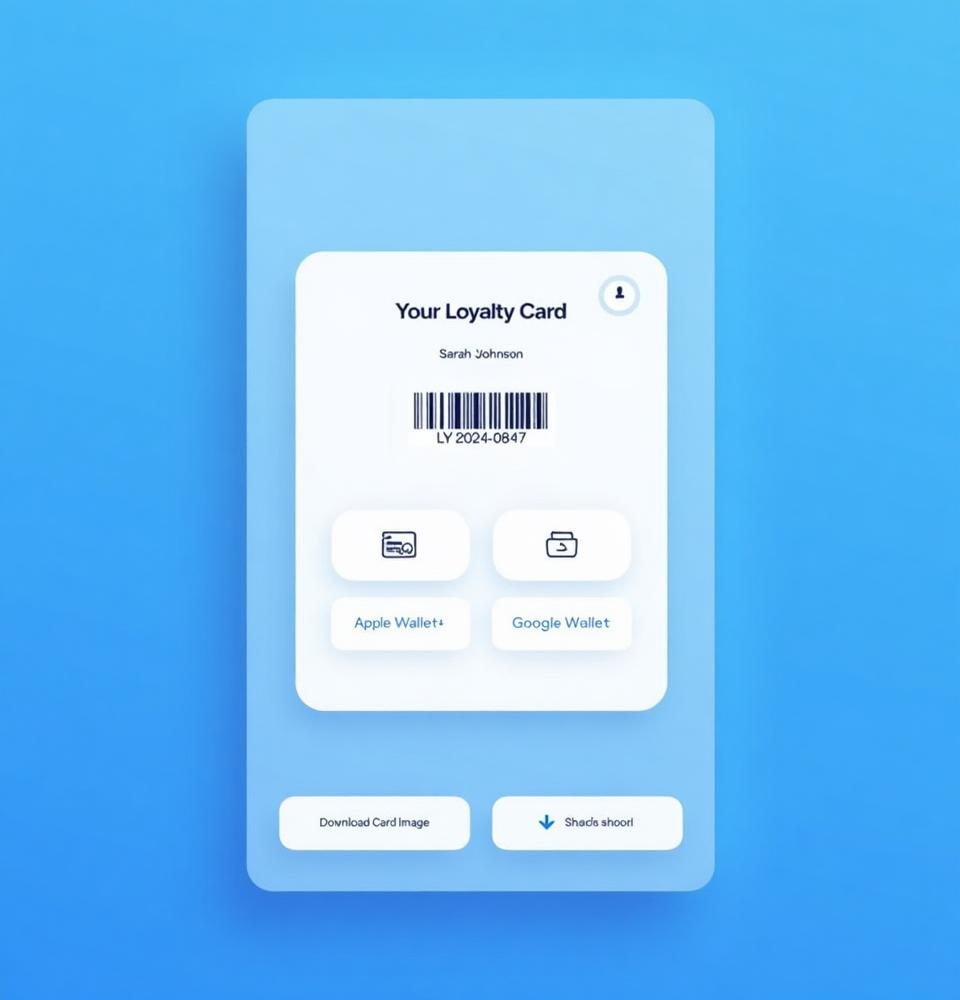
- Apple Wallet — For iPhone users, generates and installs a .pkpass file
- Google Wallet — For Android users, creates a Google Wallet loyalty object
- Download Card Image — For any device, saves a PNG of the loyalty card
💡 Tip: Wallet passes support push notifications and proximity alerts. When customers add your card to their wallet, you can send them updates that appear on their lock screen.
Marketing Consent
Customers can manage their communication preferences with simple toggles:
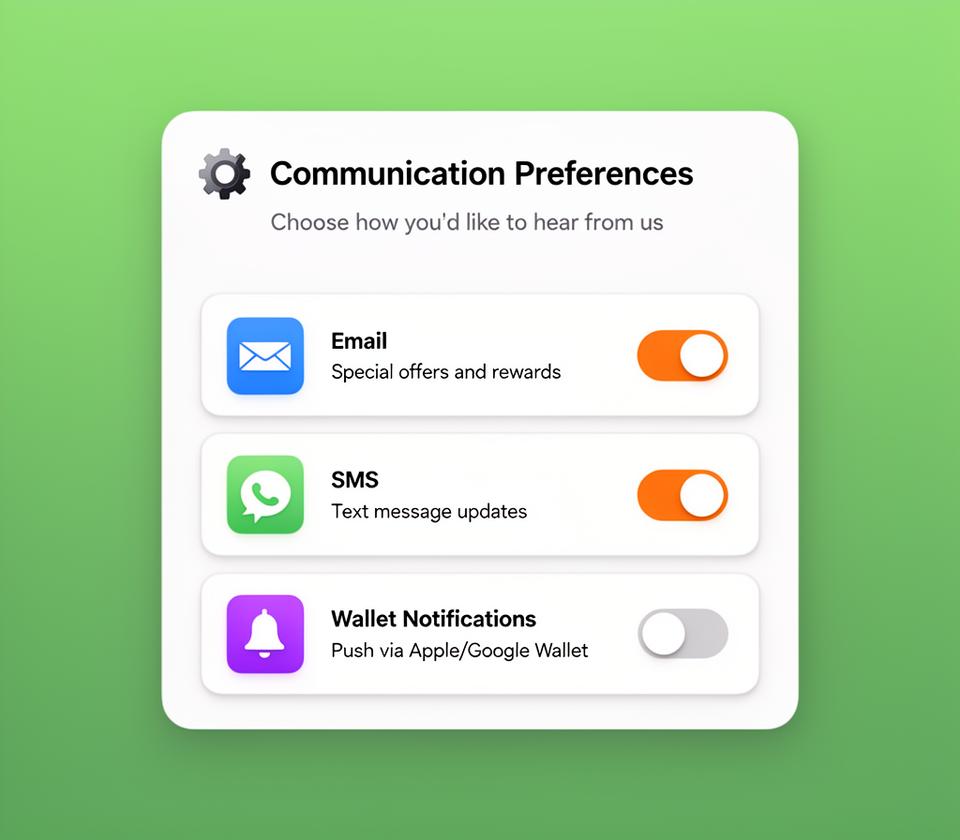
- Email marketing — Opt in or out of promotional emails
- SMS marketing — Opt in or out of text messages
- Push notifications — Opt in or out of wallet pass push messages
Changes take effect immediately. Every toggle change is timestamped and recorded for GDPR/privacy compliance.
🔑 Important: Consent preferences are respected across all marketing channels. If a customer opts out of email, they won't receive email campaigns even if they match a segment filter.
Claims History
If self-service claims are enabled, customers can view their submission history:
- Claim date and current status (pending, approved, rejected)
- Points or punches awarded (for approved claims)
- Invoice details they submitted as proof
📝 Note: Self-service claims require approval by staff before points or punches are awarded, unless you've configured auto-approval in your Rewards Settings.
Customization
The portal automatically uses your organization's branding:
- Logo — Displayed at the top of every portal page
- Brand colors — Applied to buttons, progress bars, and accents
- Organization name — Shown in the header
All branding is pulled from your organization settings configured during onboarding. To update it, visit Organization Settings in your dashboard.
Ready to get started?
Try Cockato for free and see how it can help grow your business.
Get Started Free