Designing Your Digital Loyalty Pass
Published March 3, 2026
Designing Your Digital Loyalty Pass
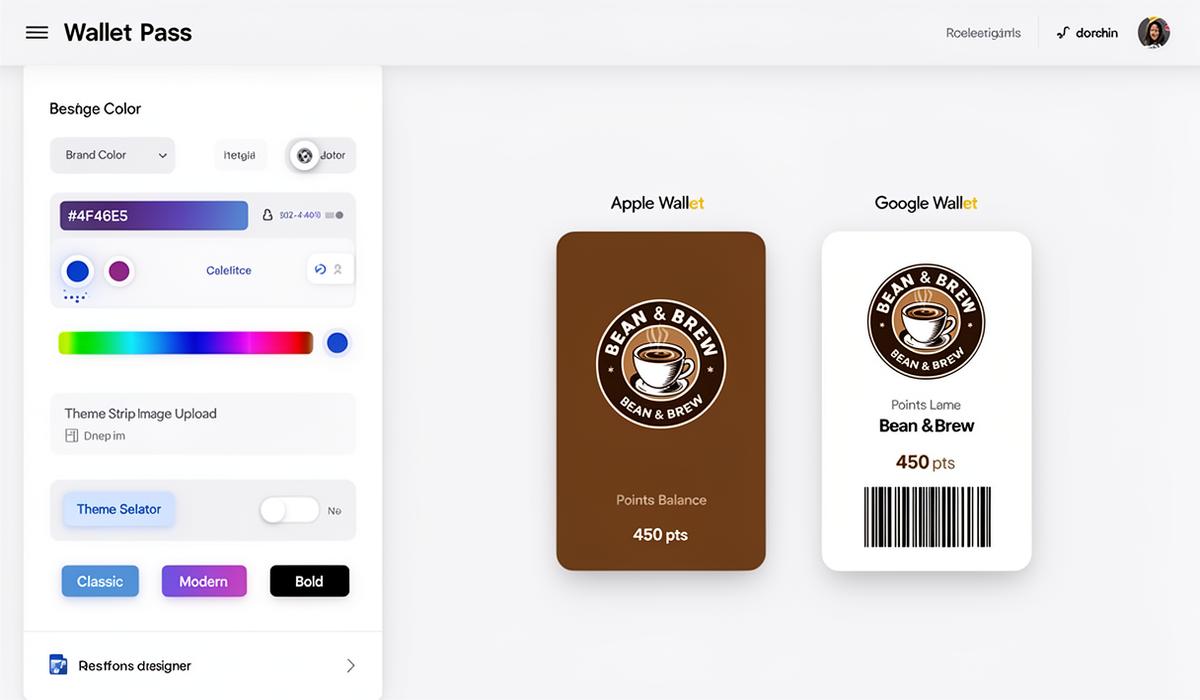
The Wallet Designer lets you create beautiful digital loyalty cards that customers add to their Apple Wallet or Google Wallet. A well-designed pass reinforces your brand every time a customer opens their phone.
Accessing the Designer
- Navigate to Wallet Designer from the sidebar
- You'll see a split-view layout with design controls on the left and live previews on the right
- Changes appear instantly in the preview as you adjust settings
Customizing Colors
Your pass uses three color layers that work together:
| Color Setting | What It Controls | Tips |
|---|---|---|
| Background Color | Main pass background | Use your primary brand color |
| Label Color | Field labels (e.g., "Points Balance") | Ensure contrast against background |
| Foreground Color | Field values and text | Must be readable on the background |
You can set colors three ways:
- Color picker — visual selection
- Hex input — enter exact values like
#4F46E5 - Preset themes — one-click professionally designed color schemes
💡 Tip: Choose a preset theme as a starting point, then fine-tune individual colors to match your brand exactly.
Logo and Strip Image
Logo
Your business logo appears at the top of every pass. It's automatically imported from your organization settings. To change it, update your logo in Organization Settings.
Strip Image
The strip image is a banner displayed prominently across the pass. This is your biggest visual branding opportunity.
- Recommended size: 1125 × 432 pixels
- Format: PNG or JPEG
- Content ideas: Store interior, hero product shot, brand pattern, or seasonal promotion
📝 Note: The strip image crops differently on Apple vs Google passes. Use the preview to check both platforms before saving.
Color Themes
Cockato includes several professionally designed themes:
- Classic — Clean and professional
- Modern — Bold with vibrant accents
- Elegant — Sophisticated dark tones
- Fresh — Light and approachable
Select a theme to instantly apply its color palette, then customize further if needed.
Apple vs Google Wallet Previews
Toggle between Apple Wallet and Google Wallet previews to see how your pass renders on each platform:
- Apple Wallet — Rounded card with strip image prominently displayed
- Google Wallet — Material Design layout with logo and color emphasis
Both platforms display the same information (business name, points balance, barcode) but with different layouts. Your branding stays consistent across both.
What Customers See on Their Pass
Every pass displays:
- Your business logo and name
- Current points balance or punch card progress
- A scannable barcode for in-store identification
- Welcome offer details (if applicable)
Saving Your Design
Click Save to apply your design. All new passes generated after saving will use the updated design.
⚠️ Important: Existing customer passes are not automatically updated. To push design changes to existing passes, use the Wallet Push feature. See "Updating Customer Passes" for details.
Design Best Practices
- High contrast: Ensure text is readable against your background color
- Professional imagery: Use high-resolution strip images that represent your brand
- Consistency: Match pass colors to your physical store branding and signage
- Test both platforms: Always preview on both Apple and Google before saving
FAQ
Can I use different designs for different outlets? No, the wallet pass design is consistent across all outlets for brand uniformity.
What happens if I change my logo? New passes will use the updated logo. Push an update to refresh existing passes.
Is there a file size limit for strip images? Yes, keep strip images under 2MB for optimal loading performance.
Ready to get started?
Try Cockato for free and see how it can help grow your business.
Get Started Free