Inviting and Managing Team Members
Published March 3, 2026
Inviting and Managing Team Members
Add team members to help manage your loyalty program. Each member can be assigned specific roles and outlet access to match their responsibilities.
Team Overview
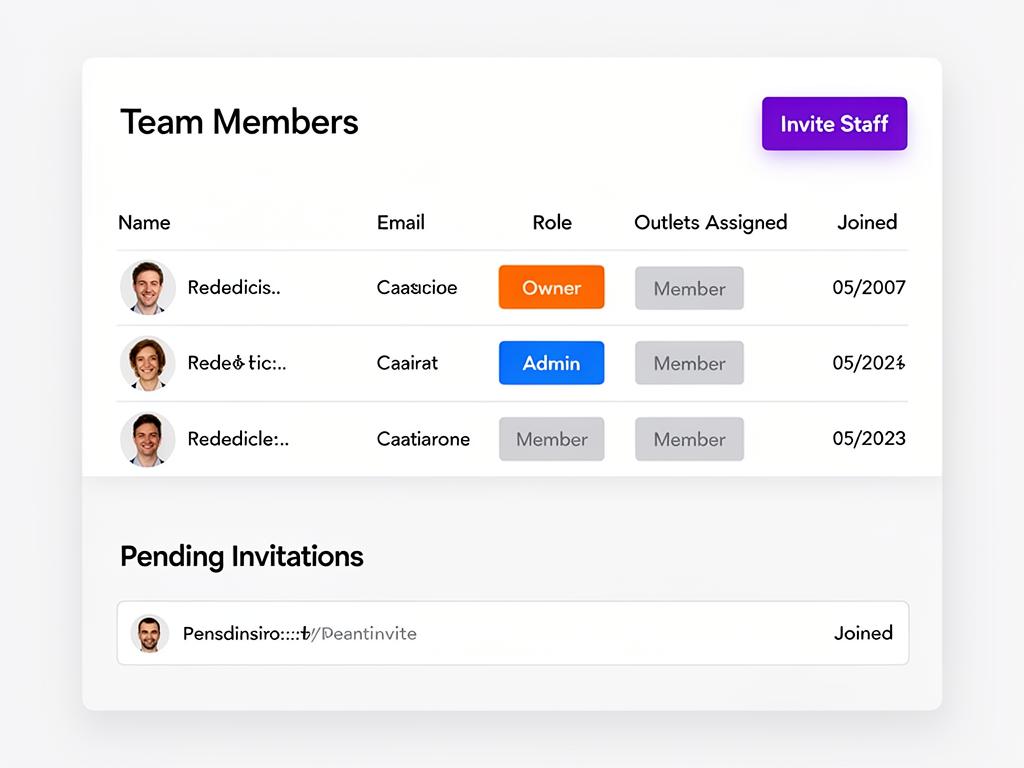
Navigate to Staff Management from the sidebar to see your current team members, their roles, and any pending invitations.
Inviting Staff
- Click Invite Staff Member from the Staff Management page
- Enter their name and email address
- Select a role (see roles below)
- Optionally assign them to specific outlets
- Click Send Invitation
The invited team member receives an email with a link to join your organization. They'll need to create a Cockato account (or sign in if they already have one) to accept.
💡 Tip: The invitation link expires after 7 days. You can resend it from the Staff Management page if it hasn't been accepted.
Roles Explained
| Role | Access Level |
|---|---|
| Owner | Full access to everything — settings, billing, team management, and data. One owner per organization. |
| Admin | Can manage rewards, customers, and staff. Cannot change billing or delete the organization. |
| Member (Staff) | Can process transactions, view customers, and use the checkout dashboard. Limited settings access. |
📝 Note: Start with the Member role for frontline staff and reserve Admin for managers who need configuration access. You can always upgrade a role later.
Outlet Assignments
If you have multiple outlets, you can restrict staff members to specific locations:
- Assigned staff can only see and process transactions for their assigned outlets
- Admins and owners can see all outlets regardless of assignment
- Each staff member can have a primary outlet that's selected by default when they log in
💡 Tip: Outlet assignments help prevent staff at one location from accidentally modifying data at another. It's especially useful for franchise-style businesses.
Managing Invitations
From the Staff Management page, you can manage pending invitations:
- View pending invitations and their status
- Resend invitation emails if they haven't been accepted
- Edit invitation details (role, outlets) before they're accepted
- Cancel pending invitations you no longer want to honor
⚠️ Important: Editing an invitation updates the role and outlet assignments that will be applied when the invitee accepts. It does not resend the email — use the resend button for that.
Removing Team Members
Organization owners can remove team members from the Staff Management page:
- Find the team member you want to remove
- Click the remove action
- Confirm the removal
Removed members immediately lose access to the organization. Their past activity (transactions, claims processed) remains in the Activity Log for audit purposes.
⚠️ Warning: Removing a team member is immediate and cannot be undone. To re-add them, you'll need to send a new invitation.
Frequently Asked Questions
Can I change someone's role after they've joined? Currently, role changes require removing and re-inviting the member with the new role. This ensures proper access control.
What happens when a staff member leaves the company? Remove them from the Staff Management page immediately. Their access is revoked instantly. Consider rotating any shared security PINs as well.
Can staff members belong to multiple organizations? Yes — a user can be a member of multiple Cockato organizations with different roles in each.
How many team members can I add? The number of team members depends on your subscription plan. Check the Billing page for your plan's limits.
Can staff see customer personal information? All team members can view customer names, emails, and loyalty balances. They cannot access billing information or organization-level settings unless they have the Admin or Owner role.
Ready to get started?
Try Cockato for free and see how it can help grow your business.
Get Started Free