Creating Your Cockato Account
Published March 3, 2026
Creating Your Cockato Account
Getting started with Cockato takes just a few minutes. This guide walks you through registration, email verification, and creating your first organization — so you can start rewarding loyal customers right away.
Step 1: Register Your Account
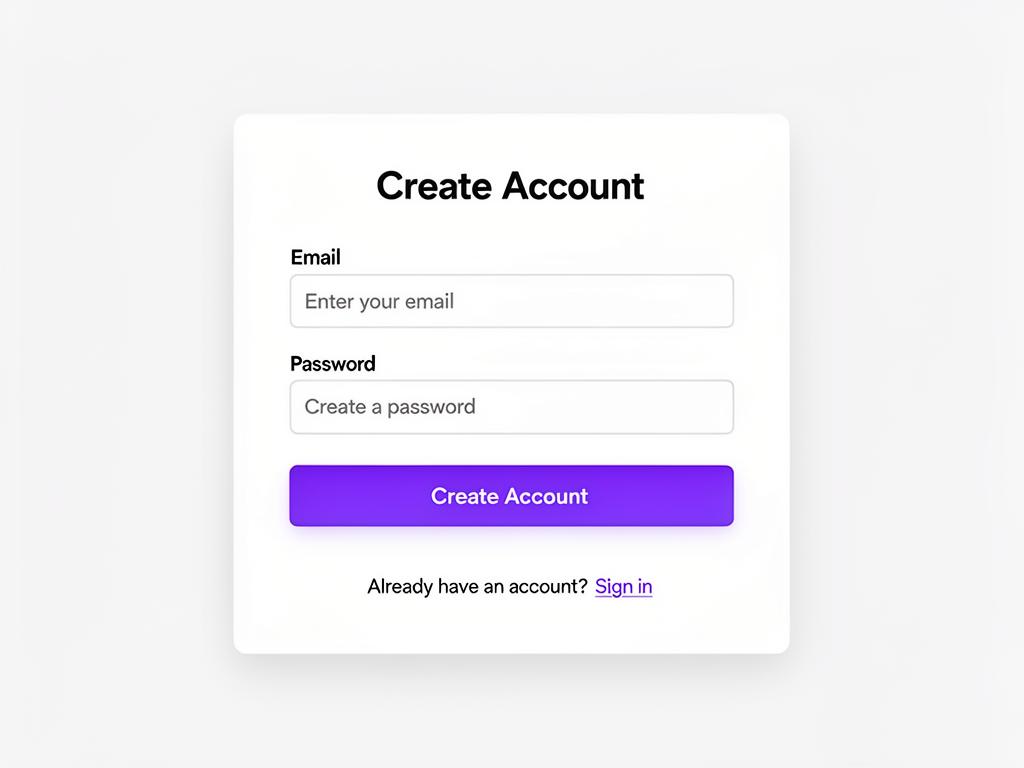
- Navigate to the Cockato registration page
- Enter your email address and choose a secure password
- Click Create Account
💡 Tip: Use a business email rather than a personal one — this becomes the owner email for your organization and is used for all account notifications.
⚠️ Important: Your password must be at least 6 characters. Choose something secure that you don't use on other sites.
Step 2: Verify Your Email
After registering, check your inbox for a verification email from Cockato. Click the confirmation link to activate your account.
⚠️ Warning: The verification link expires after 24 hours. If you don't see the email, check your spam or junk folder. You can also request a new verification email from the login page.
Once verified, sign in with your email and password to continue.
Step 3: Create Your Organization
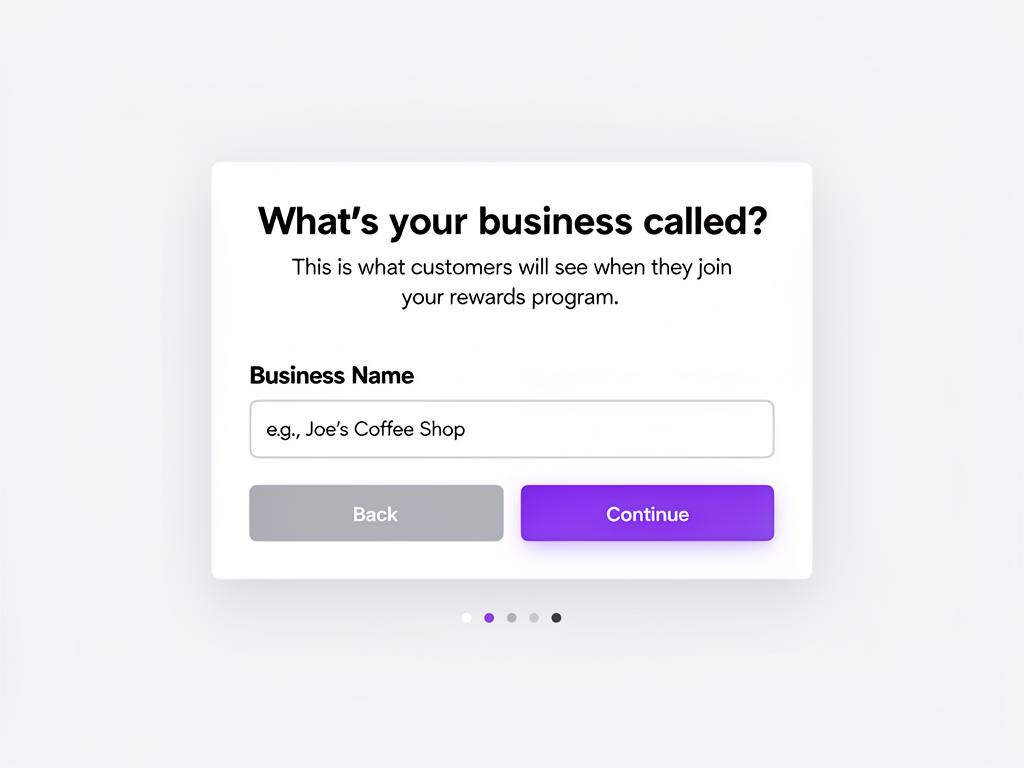
After signing in for the first time, you'll be guided through creating your organization:
- Review the intro cards — a quick overview of how Cockato works (QR sign-up, wallet cards, rewards)
- Click Get Started to continue
- Enter your business name — this is what customers see on their loyalty cards and sign-up pages
- Click Continue to proceed to the onboarding wizard
📝 Note: You can change your business name at any time from Organization Settings. Don't worry about getting it perfect right away.
What Happens Next
After creating your organization, the onboarding wizard guides you through the essential setup steps:
- Website & branding — enter your website URL and Cockato auto-extracts your logo and brand colors
- Country selection — determines your default currency for pricing and billing
- Wallet design — customize the digital wallet pass your customers will add to Apple Wallet or Google Wallet
- Rewards configuration — set up your points system or punch cards
- QR poster design — create a printable sign-up poster for your store
- Plan selection — choose your subscription tier (including a free plan)
💡 Tip: You don't need to complete all steps in one sitting. Cockato saves your progress, and you can return to any step later.
Frequently Asked Questions
Can I have multiple organizations? Each Cockato account is linked to one organization. If you need to manage multiple brands, contact support and we'll help you set up additional accounts.
Is there a free plan? Yes — Cockato offers a free plan with core features so you can explore the platform before upgrading. You can select it during onboarding or from the Billing page.
Can I change my country after setup? Country selection determines your default currency. If you need to change it after initial setup, contact support for assistance.
What if I don't receive the verification email? First, check your spam or junk folder. If it's not there, return to the login page and request a new verification email. Make sure to check that you entered the correct email address during registration.
Can I change the owner email later? The email used to register becomes your account email. You can update it from your Profile page after signing in.
Ready to get started?
Try Cockato for free and see how it can help grow your business.
Get Started Free