Creating Punch Cards
Published March 3, 2026
Creating Punch Cards
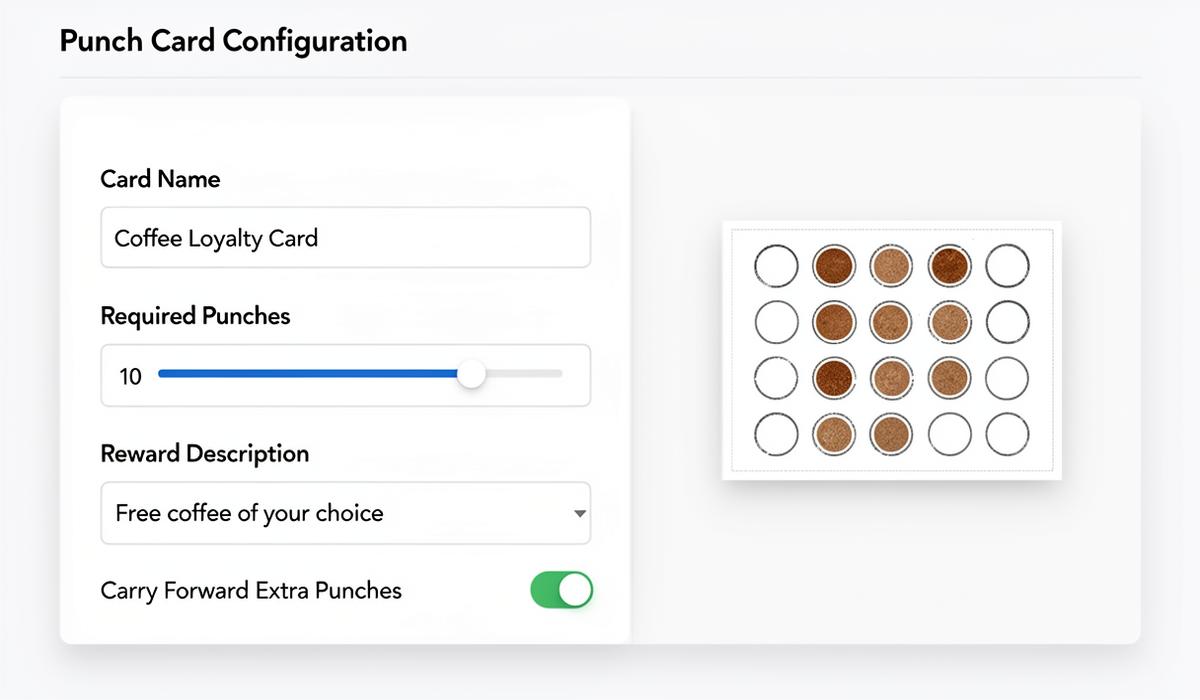
Punch cards are a simple, visual way to reward repeat customers. After collecting a set number of punches, customers unlock a reward — just like a traditional paper punch card, but digital.
Enabling Punch Cards
- Go to Rewards Settings from the sidebar
- Click the Punch Cards tab
- Toggle Punch Cards Enabled to on
Creating a Punch Card Rule
Click Add Punch Card to create a new rule:
| Field | Description | Example |
|---|---|---|
| Name | Descriptive card name | "Coffee Loyalty Card" |
| Punches Required | Number to earn a reward | 10 |
| Reward Description | What the customer receives | "Free coffee of your choice" |
| Carry Forward | Keep extra punches after reward | Enabled |
💡 Tip: Punch cards with 8–12 punches tend to perform best. Too few feels too easy, too many feels unreachable.
How the Carry Forward Option Works
When Carry Forward Extra Punches is enabled:
- A customer with 12 punches on a 10-punch card earns 1 reward and keeps 2 punches toward the next
- This rewards high-frequency customers and encourages continued engagement
When disabled:
- Punches reset to 0 after earning a reward
- Better for high-value rewards where you want a clean reset
How Punches Are Awarded
Punches can be added through three channels:
- Staff Checkout — Staff members punch the card when processing a transaction at the checkout dashboard
- Self-Service Claims — Customers submit a claim and receive punches after approval (if self-service is enabled)
- POS Integration — Punches are awarded automatically via the API when a transaction is processed
📝 Note: Each channel records the outlet where the punch was awarded, so you can track activity across locations.
Customer Experience
Customers see their punch card progress in two places:
- Digital Wallet Pass — Shows current punch count and remaining punches needed
- Customer Portal — Displays visual progress with a punch grid
When a customer completes a card, staff can redeem the reward from the checkout dashboard.
Multiple Punch Cards
You can create multiple punch card rules for different products or promotions:
- "Coffee Card" — Buy 10, get 1 free
- "Lunch Special" — Buy 5 lunches, get 1 free
- "Seasonal Card" — Limited-time holiday promotion
Each customer tracks progress on each card independently. All active cards appear on their wallet pass.
Managing Existing Cards
From the Punch Cards tab, you can:
- Edit rules — Change name, punches required, or reward description
- Deactivate a card — Hide it from new transactions while preserving customer progress
- View statistics — See how many customers are actively collecting punches
⚠️ Important: Changing the number of required punches on an existing card affects all customers. If you reduce from 10 to 8, customers at 8+ punches will immediately qualify for a reward.
Combining with Points
Punch cards and points can run simultaneously, giving customers a hybrid loyalty experience:
- Points for spend-based rewards
- Punch cards for visit-based rewards
This encourages both higher spending and more frequent visits.
FAQ
Can I delete a punch card rule? You can deactivate it, which hides it from new transactions. Customer history is preserved.
Do punches expire? Punch card progress does not currently expire. Customers keep their punches indefinitely.
Can staff award multiple punches at once? Yes, staff can award multiple punches in a single transaction from the checkout dashboard.
Ready to get started?
Try Cockato for free and see how it can help grow your business.
Get Started Free