Setting Up Points Rewards
Published March 3, 2026
Setting Up Points Rewards
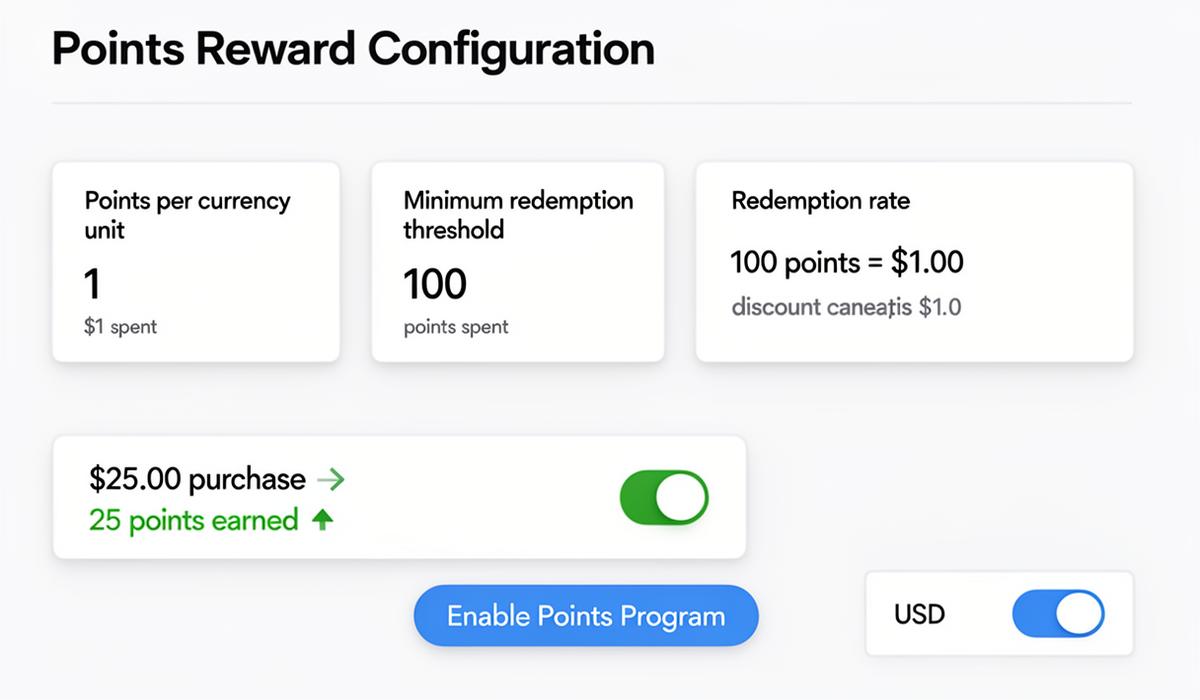
The points system lets customers earn points on purchases and redeem them for rewards. This is the core of most loyalty programs on Cockato.
Enabling the Points Program
- Navigate to Rewards Settings from the sidebar
- Click the Points tab
- Toggle Points Enabled to on
Configuring Earn Rates
Set how customers accumulate points with two settings:
| Setting | What It Means | Example |
|---|---|---|
| Currency Per Point Earn | Spend required to earn points | $1 per point |
| Points Per Currency Unit | Points awarded per threshold | 1 point per $1 |
Example Earn Configurations
- Simple: 1 point per $1 spent — easy for customers to understand
- Generous: 2 points per $1 spent — accelerates earning, drives engagement
- Premium: 1 point per $5 spent — slower earning for higher-value rewards
💡 Tip: Start with simple, round numbers. Customers respond better to "Earn 1 point per $1 spent" than complex fractional rates.
Configuring Redemption
Set how customers exchange points for value:
| Setting | What It Means | Example |
|---|---|---|
| Minimum Points for Redemption | Minimum balance to redeem | 100 points |
| Points Per Currency Redemption | Points equal to one currency unit | 100 points = $1 |
📝 Note: Setting a minimum redemption threshold (e.g., 100 points) encourages customers to return multiple times before they can redeem, increasing visit frequency.
Currency Settings
Your points currency is automatically set based on your country selection during onboarding. The currency determines:
- How earn rates are displayed (e.g., "per $1" vs "per €1")
- How redemption values appear to customers
- Invoice amounts in self-service claims
To change your currency, update your country in Organization Settings.
How Points Are Awarded
Points flow to customers through three channels:
- Staff Checkout — Staff enters the purchase amount and points are calculated automatically
- Self-Service Claims — Customers submit purchase receipts and earn points after approval
- POS Integration — Points are calculated and awarded automatically via API
All point transactions are logged in the Activity Log with the outlet, amount, and staff member who processed them.
How Points Appear to Customers
Customers see their points balance in real-time across:
- Digital Wallet Pass — Updated after each transaction
- Customer Portal — Full points history with transaction details
- Welcome Email — Initial balance shown after signup
Redemption Flow
When a customer wants to redeem points:
- Staff opens the customer's profile in the checkout dashboard
- Staff clicks Redeem Points and enters the redemption amount
- Points are deducted and the transaction is logged
- The customer's wallet pass updates automatically
⚠️ Important: Only staff with checkout access can process point redemptions. Customers cannot self-redeem points.
Best Practices
- Generous but sustainable: Set earn rates that feel rewarding without hurting margins
- Minimum threshold: Use a 100+ point minimum to encourage multiple visits
- Combine with punch cards: Run points for spend-based rewards and punch cards for visit-based rewards
- Communicate clearly: Display your earn rate on your QR poster and signup page
FAQ
Can points expire? Points do not currently expire. Customer balances persist indefinitely.
Can I adjust a customer's points manually? Yes, staff can add or deduct points from the customer detail view.
What happens if I change the earn rate? Only future transactions use the new rate. Existing point balances are not recalculated.
Ready to get started?
Try Cockato for free and see how it can help grow your business.
Get Started Free