Self-Service Approval Modes
Published March 3, 2026
Self-Service Approval Modes
Cockato offers different approval modes for self-service claims, letting you balance convenience with security. Choose the mode that best fits your business workflow.
Staff Approval (Default)
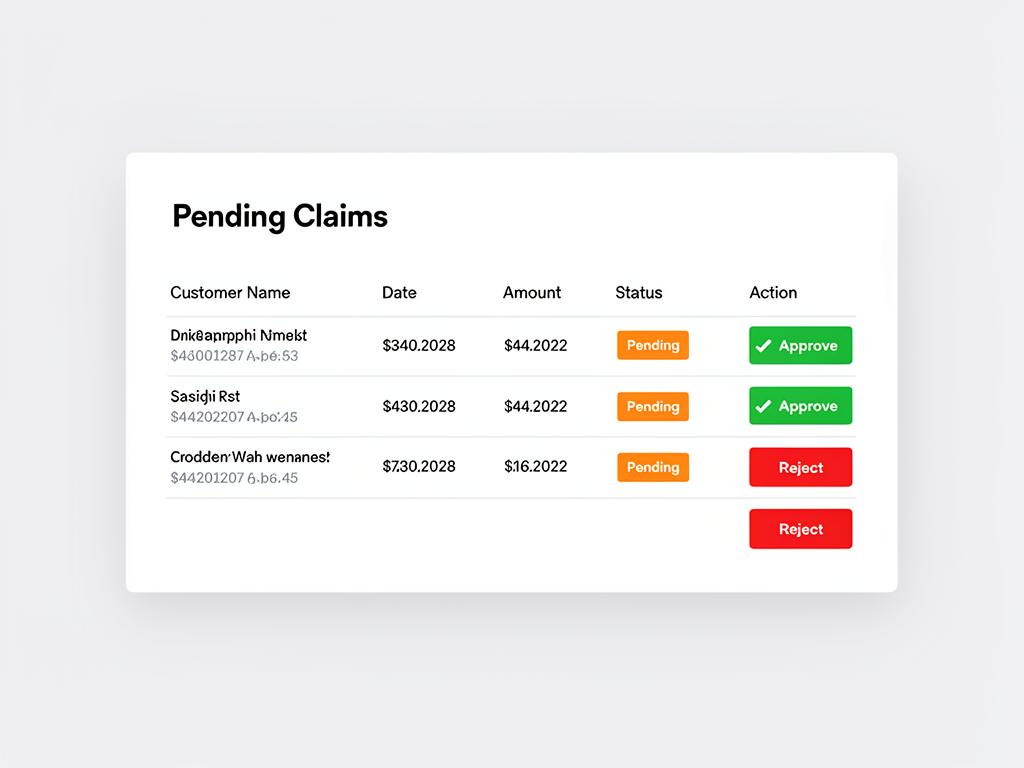
In staff approval mode, every self-service claim goes through a manual review process:
- Customer submits a self-service claim
- The claim appears in the Pending Claims queue on the Staff Dashboard
- Staff reviews the claim details (amount, receipt photo, invoice number)
- Staff approves or rejects the claim with optional notes
- Points or punches are awarded automatically upon approval
- The customer is notified of the outcome
💡 Tip: Staff approval mode is the safest option and is recommended for most businesses. It gives you full control over every transaction.
Best for: Businesses that want full control over every transaction and where staff can process claims regularly.
Auto-Approval
In auto-approval mode, claims are processed instantly without staff intervention:
- Customer submits a self-service claim
- Points or punches are awarded immediately
- No staff review is required
- All claims are still logged for audit purposes
⚠️ Warning: Auto-approval removes the verification step. Only use this if you have other safeguards in place (like required photo evidence and a security PIN).
Best for: High-trust environments, frequent repeat customers, or businesses where manual review isn't practical due to volume.
Changing Your Approval Mode
- Go to Rewards Settings from the sidebar
- Scroll to the Self-Service section
- Select your preferred Approval Mode (Staff Approval or Auto-Approve)
- Click Save
📝 Note: Changing the approval mode only affects new claims. Any existing pending claims will still need to be processed under the previous mode.
Combining with Security Measures
Regardless of which approval mode you choose, you can layer additional security measures:
| Security Layer | What It Does | Recommended For |
|---|---|---|
| PIN Code | Customers must enter a PIN displayed in-store | Both modes |
| Photo Evidence | Customers must upload a receipt photo | Auto-approval especially |
| Invoice Number | Customers must enter a unique invoice number | Both modes |
| Invoice Date | Customers must enter the purchase date | Auto-approval especially |
💡 Tip: If you choose auto-approval, we strongly recommend enabling photo evidence and invoice number requirements at minimum. This creates an audit trail even without manual review.
Monitoring Claims
Even with auto-approval, all claims are logged and visible in your dashboard. Review claims history regularly to:
- Detect unusual patterns (e.g., multiple claims from the same customer in a short period)
- Identify potential misuse before it becomes a problem
- Verify that receipt photos match claimed amounts
📝 Note: Cockato automatically flags potential duplicate claims when a customer submits multiple claims with similar details. Staff will see a warning indicator on flagged claims.
Frequently Asked Questions
Can I switch between modes at any time? Yes — you can change your approval mode whenever you like from Rewards Settings. The change takes effect immediately for new claims.
What happens to pending claims if I switch to auto-approval? Existing pending claims remain in the queue and still need manual approval. Only new claims submitted after the change will be auto-approved.
Can I auto-approve some claims and manually review others? Currently, the approval mode applies to all self-service claims. You cannot set different modes for different claim types or customers.
How quickly are auto-approved claims processed? Instantly — points or punches are awarded the moment the customer submits the claim.
Ready to get started?
Try Cockato for free and see how it can help grow your business.
Get Started Free