Using the Activity Log
Published March 8, 2026
Using the Activity Log
The Activity Log is your centralized audit trail for every loyalty transaction across your business. It gives you a complete picture of what's happening — from points earned to claims submitted.
Accessing the Activity Log
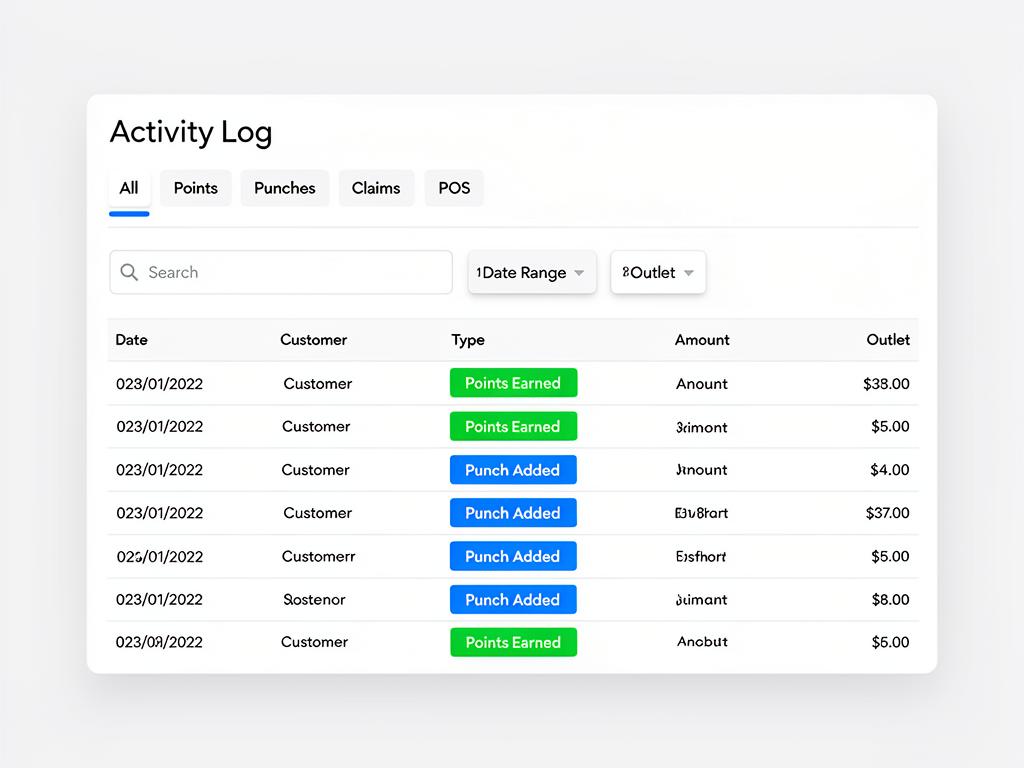
Navigate to Activity from the sidebar to open the Activity Log. You'll see a unified view of all transactions with tab filters at the top.
Transaction Types
The log combines data from multiple sources into a single view. Use the tab filters at the top to focus on a specific type:
| Type | What It Shows |
|---|---|
| All | Every transaction across all types |
| Points | Points earned and redeemed by customers |
| Punches | Punch card stamps added or rewards redeemed |
| Claims | Self-service claims (pending, approved, or rejected) |
| POS | Transactions processed through your point-of-sale integration |
💡 Tip: Use the All tab for a high-level overview, then switch to specific tabs when investigating particular transaction types.
Filtering and Search
Narrow down results using the filter controls:
Customer Search
Type a customer name or email into the search bar. If multiple customers share the same name, the email is shown alongside to help you distinguish between them.
Date Range
Click the date picker to select a custom date range. This is useful for generating reports for a specific period (e.g., a month or quarter).
Outlet Filter
If you have multiple outlets, use the outlet dropdown to filter transactions by location. This helps you compare activity across branches.
📝 Note: All filters work together — you can search for a specific customer within a date range at a particular outlet.
Viewing Claim Details
For self-service claims, click on a claim row to open the detail dialog. This shows:
- Claim status (pending, approved, or rejected)
- Invoice photo (if uploaded by the customer)
- Invoice number and amount
- Invoice date
- Any custom field responses
- Staff notes or resolution details
💡 Tip: When reviewing claims, check the invoice photo against the claimed amount to verify accuracy before approving.
Exporting Data
Click the Export CSV button to download the currently filtered view as a spreadsheet. The export respects all active filters.
Common use cases for exports:
- Monthly reporting to management
- Reconciling loyalty points with sales data
- Auditing claim approvals and staff activity
- Tax records for reward redemptions
⚠️ Important: The export only includes transactions matching your current filters. Make sure to set the correct date range and filters before exporting.
Frequently Asked Questions
How far back does the Activity Log go? The log keeps all transactions for the lifetime of your account. Use the date range filter to navigate to older records.
Can staff members see the Activity Log? Yes — all organization members can view the Activity Log. However, staff assigned to specific outlets will only see transactions for their assigned locations.
Can I undo a transaction? Transactions cannot be undone from the Activity Log. To correct a mistake, create a new transaction (e.g., deduct points manually from the customer's profile).
Is there a limit to how many transactions I can export? CSV exports include all matching transactions within your filtered view. For very large datasets, consider narrowing your date range.
Ready to get started?
Try Cockato for free and see how it can help grow your business.
Get Started Free